 ShipStamp
Your Vinted Label Prints Tiny, Rotated, or Half Off the Page. Here’s Why, and How to Fix It
You hit print and out comes a label the size of a postage stamp, marooned in the middle of the paper. Or it’s turned ninety degrees and running off the edge. Or the barcode is cut clean in half. You reprint, fiddle with the scale, reprint again, and waste three labels before you give up and tape a wonky one to the parcel. It’s not your printer being difficult. It’s the PDF the courier handed you, and once you understand what’s in it, the fix is simple.
The label isn’t the page
Here’s the thing nobody tells you: the file your courier sends is not a label. It’s an A4 document with a label printed somewhere on it. The actual shipping label — barcode, address, tracking number — occupies maybe a quarter of the page. The rest is white space.
Your printer doesn’t know which part is the label. As far as it’s concerned, you’ve asked it to print an A4 page, so that’s what it tries to do. What happens next depends entirely on the print settings, and that’s where it all goes wrong.
Why it comes out tiny
If you’re printing to a thermal label printer loaded with 100×150mm labels, and you leave the print dialog on ‘fit to page’ or ‘shrink to fit’, the printer takes the whole A4 page and squashes it down to fit a single label. The label was a quarter of that page, so once the whole thing is shrunk to label size, the actual label is now a quarter of a label — a tiny rectangle floating in the middle, with the barcode far too small to scan.
Turn fit-to-page off and print at 100% instead, and you swing the other way: now the printer prints the A4 page at full size onto a label that’s a fraction of A4, so you get the top-left corner of the page — usually blank — and the label itself is off the edge entirely.
Why it comes out sideways
Some couriers lay the label out rotated. InPost is the one sellers hit most often: the label is rendered ninety degrees on the page, designed to be read turned on its side. Send that straight to a label printer and it prints sideways, with the long edge of the label running across the short edge of your media, so half of it falls off.
No amount of fiddling with the scale fixes a rotation problem. The label needs to be turned the right way up before it’s sent to the printer, and most print dialogs don’t give you a clean way to do that for one document.
Why the barcode gets cut in half
This one is usually a margin problem. Label printers have a small non-printable border, and if the label sits right at the edge of its area in the PDF, the printer’s margin clips it. A clipped barcode is worse than a small one — a courier’s scanner will reject it at drop-off, and you won’t find out until you’re standing at the counter.
The real fix: crop, rotate, then print at true size
The reliable way to print any awkward label is the same three steps every time. Crop the PDF down to just the label, throwing away the surrounding white space so the label is the page. Rotate it if the courier laid it out sideways. Then print that cropped, correctly-oriented label at 100% to your label media. Done that way, the label fills the sticker, the barcode is whole, and it scans first time.
The trouble is that doing this by hand — in a PDF editor, per label, every single time — is tedious enough that most sellers don’t bother. That’s the gap ShipStamp closes.
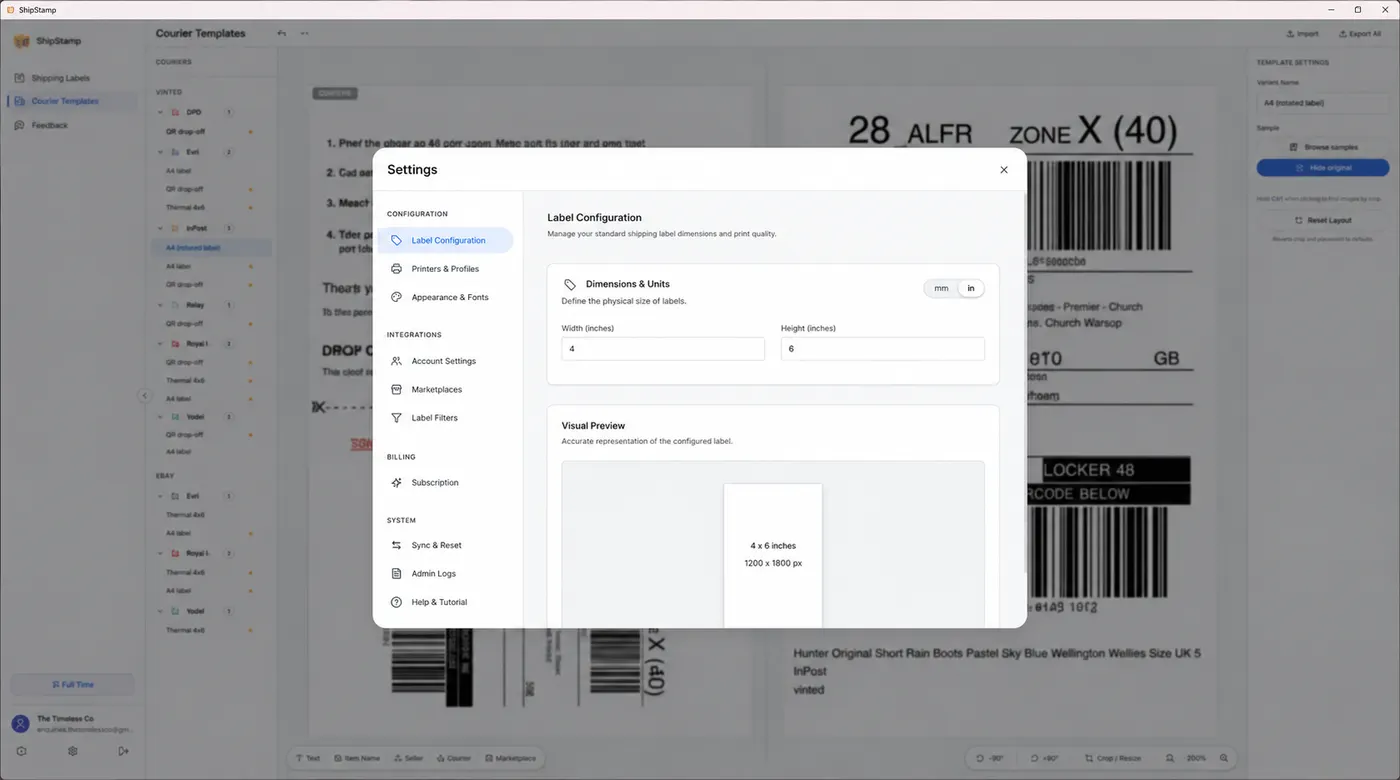
How ShipStamp handles it
ShipStamp pulls your labels in from your Gmail or Outlook inbox automatically and renders each one so you can see exactly what will print before anything hits paper. When a label is awkward, the built-in editor lets you crop straight to the label area and rotate it ninety degrees with a click — no separate PDF tool, no exporting and re-importing.
The part that actually saves you time: it remembers the fix per courier. Crop and rotate an InPost label once, and every future InPost label is cropped and rotated the same way automatically. You’re not fixing the same broken layout over and over — you fix each courier’s label type a single time, and it’s handled from then on.
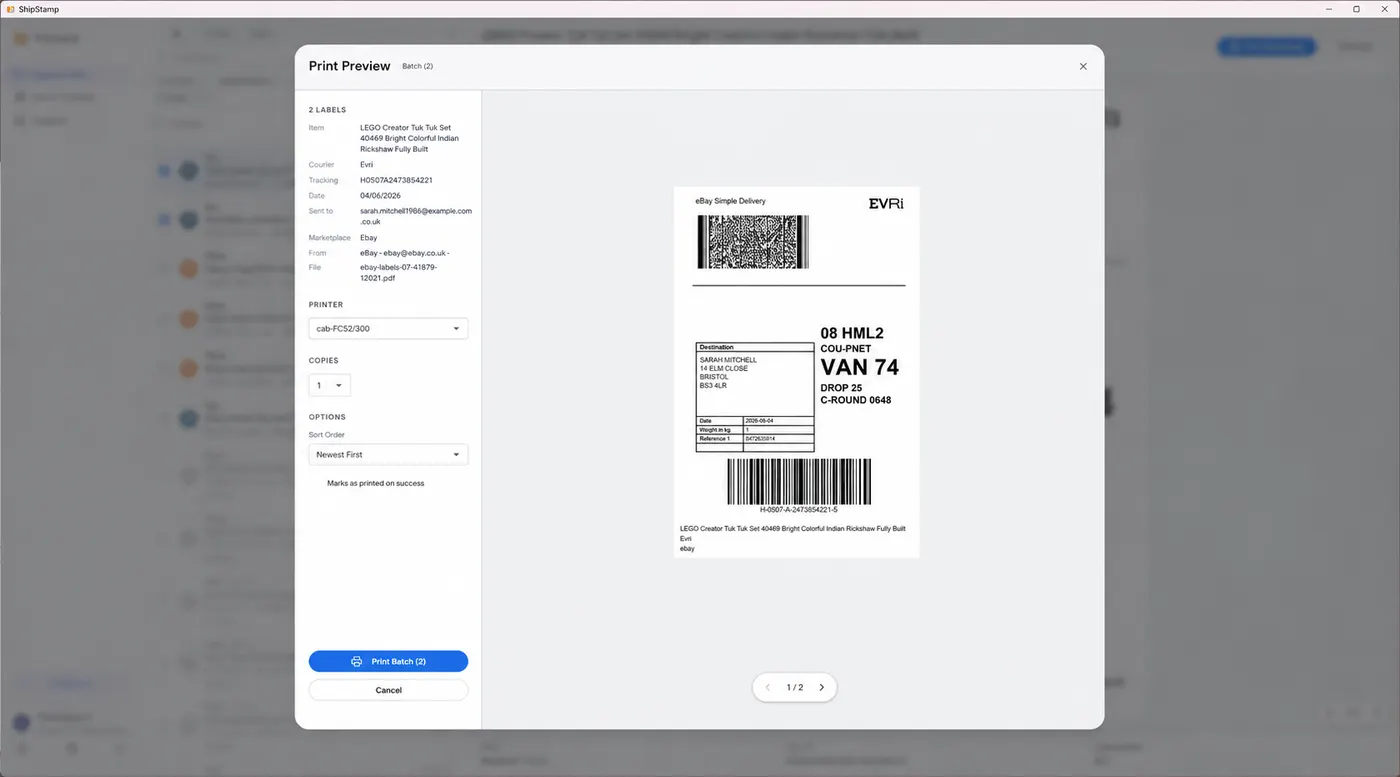
And because you see the preview before printing, the trial-and-error disappears. No printing a test label, squinting at it, adjusting the scale, and printing again. What you see in the preview is what comes out of the printer.
Common questions
Why does my Vinted label print so small?
The label is a small image sitting on a full A4 page in the PDF. With ‘fit to page’ on a thermal printer, the whole A4 sheet is shrunk to label size, so the actual label ends up a fraction of its proper dimensions. Crop to just the label, then print at 100%.
Why does my courier label print sideways or rotated?
Some couriers (InPost is a common example) generate the label rotated ninety degrees on the page. Printed as-is on a label printer it comes out sideways. Rotating the label ninety degrees before printing fixes it.
How do I print a Vinted label at the correct size?
Crop the PDF down to the label itself, rotate it if the courier laid it out sideways, and print at 100% scale. ShipStamp does the crop and rotate in a built-in editor and remembers the settings per courier, so you only fix each label type once.
The fix
ShipStamp prints every label at the right size, the first time
ShipStamp pulls your Vinted and eBay labels in from your inbox, shows you a true-size preview before anything prints, and gives you a built-in editor to crop and rotate any awkward courier label — then remembers the fix per courier so you never redo it.
No more tiny labels, no more sideways InPost prints, no more clipped barcodes rejected at drop-off. Works with any printer Windows can see, from a thermal label printer to a standard inkjet.
Free to try, 50 labels included, no card required.
Join the waitlist