 ShipStamp
No Thermal Printer? How to Print 4 Shipping Labels on One A4 Sheet
Not everyone selling on Vinted or eBay owns a thermal label printer — and you don’t need one to ship tidily. If you’ve got the ordinary inkjet sitting on your desk, you can print four shipping labels onto a single A4 sheet, at full size, ready to peel or cut. We just tested the four-up A4 workflow end to end on a Canon PIXMA inkjet, and it works exactly as it should. Here’s how to set it up.
You don’t need a thermal printer to ship well
A thermal label printer is lovely if you post in volume — a roll of 6×4 labels, no ink, one button. But it’s another device to buy, and most people selling a few parcels a week already own a perfectly good inkjet or laser printer. The problem was never the hardware. It was that printing courier labels on A4 usually means one label marooned in the corner of a full page, cut out with scissors and taped on by hand.
That’s the bit ShipStamp fixes. It prints to any printer Windows can see — thermal, inkjet or laser — and it can lay several labels out on one A4 sheet so the page isn’t mostly wasted white space. We ran the full four-up flow on a Canon PIXMA inkjet during testing; it printed cleanly and in register, and any inkjet should behave the same way.
Four labels to a sheet, at their true size
When you open the print preview, ShipStamp offers a few A4 layouts alongside the direct-to-label-printer mode: one label per page, four labels per sheet (a 2×2 grid, roughly 99.1mm × 139mm per label), and six labels per sheet (a 2×3 grid at about 99.1mm × 93.1mm each) for smaller labels.
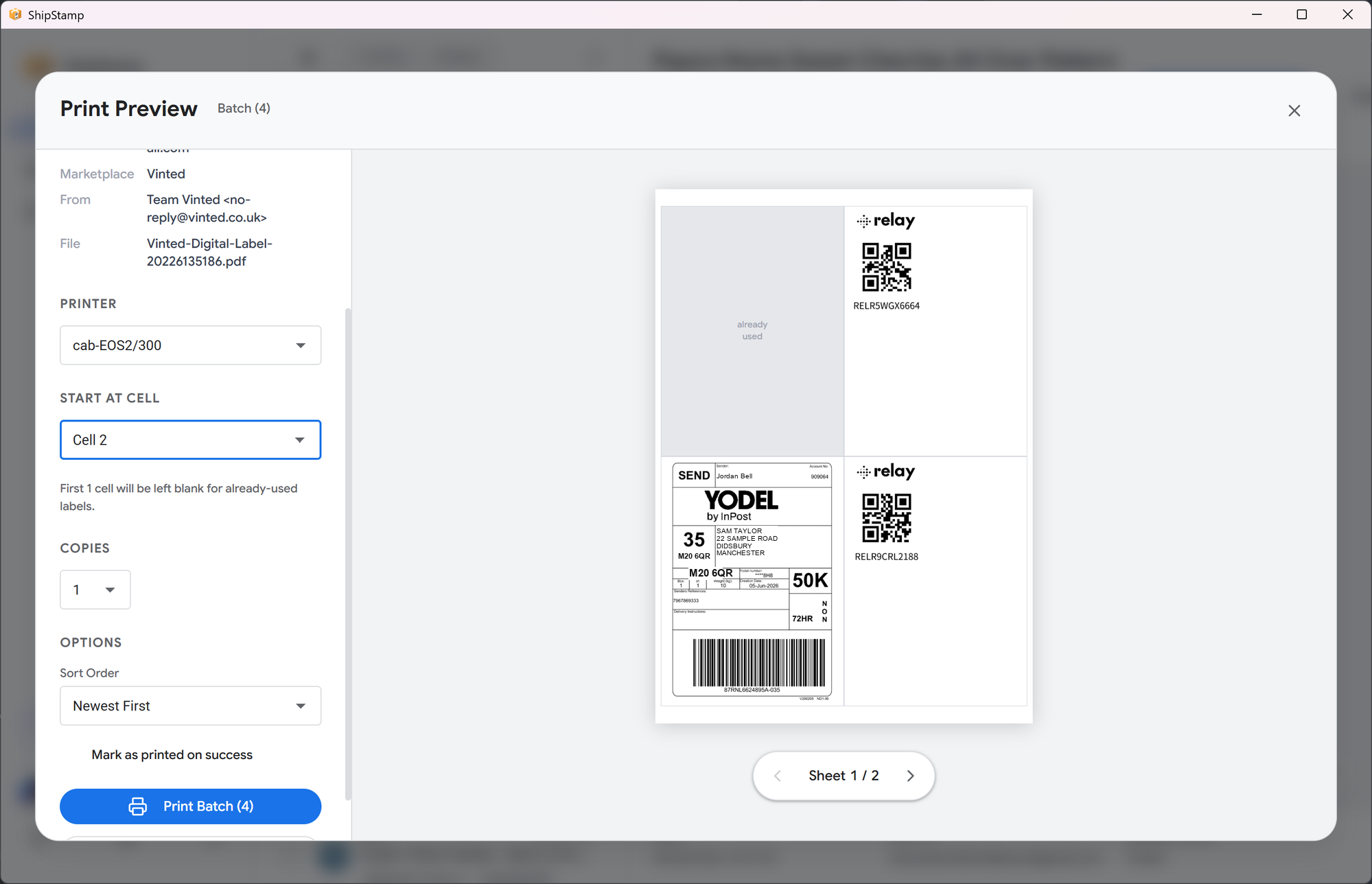
Pick “A4 — 4 labels per sheet” and ShipStamp drops four of your labels into the grid at their real size, so the barcode stays sharp and scannable. Load plain A4 to cut out, or a standard 4-up self-adhesive sticker sheet to peel and stick — the layout is sized to match the common cut lines. Got more than four labels queued? It fills the first sheet and pages the rest onto the next, rather than dropping the overflow.
How to print four labels on A4, step by step
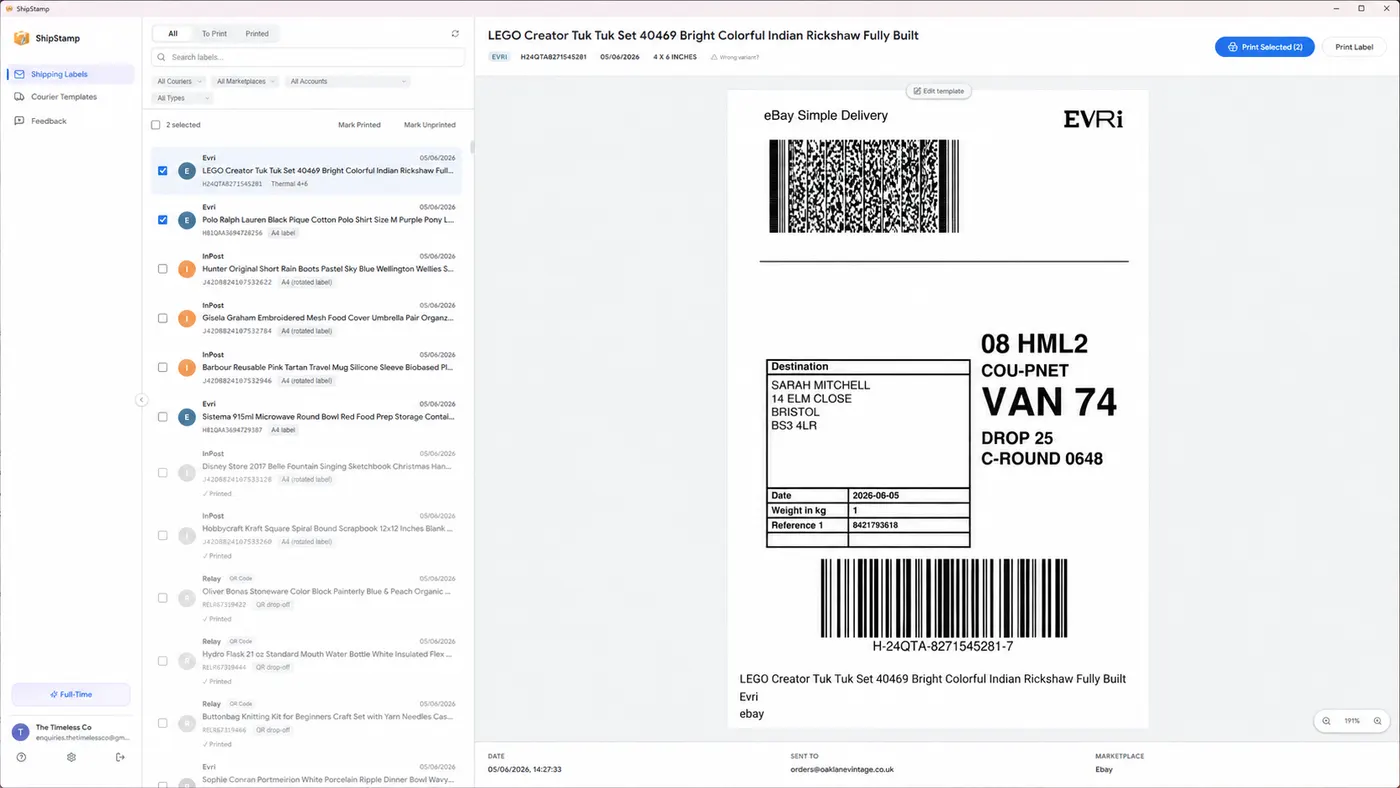
Once ShipStamp has pulled your labels in from your Gmail or Outlook inbox, the whole thing takes a few clicks:
1. Select the labels you want to print — one, four, or a whole batch.
2. Open the print preview and choose A4 — 4 labels per sheet as the layout.
3. Pick your inkjet (or any printer) from the printer dropdown.
4. Check the live preview of the sheet, then hit print. Peel or cut, and stick.
The first time you print on a particular printer, it’s worth running the A4 alignment calibration. Every printer feeds paper a little differently, so you can nudge the grid a millimetre or two until the labels land dead-centre on the stickers. Set it once and every sheet after that lines up.
Never bin a part-used sticker sheet again
Real packing sessions don’t come in neat multiples of four. You print four labels on Monday, then three more sales land on Wednesday. With most tools you’d waste a fresh sheet on those three, or fiddle with peeling and re-sticking.
ShipStamp lets you choose which cell to start at. If the top-left sticker is already gone, set it to start at cell 2 and ShipStamp leaves that cell blank, printing only onto the labels that are still there. The half-used sheet from last week gets finished off instead of binned.
When an inkjet is enough — and when it isn’t
Printing four to an A4 sheet on an inkjet is the most sensible setup there is if you post a handful of parcels a week. It uses a quarter of the paper of one-per-page, the labels come out at full size so barcodes scan first time, and on sticker sheets there’s no scissors and no tape at all.
If you grow to dozens of parcels a day, a thermal printer will still be faster and cheaper per label — no ink, no cutting. But there’s no need to buy one to start, and ShipStamp prints to both, so the day you do upgrade, nothing about your workflow changes.
Common questions
Can I print shipping labels on a normal inkjet printer?
Yes. ShipStamp prints to any printer Windows can see, including everyday inkjet and laser A4 printers — no thermal printer needed. We tested four-up A4 printing on a Canon PIXMA inkjet, and any inkjet should work the same way.
How do I fit four shipping labels on one A4 sheet?
Choose the “A4 — 4 labels per sheet” layout in ShipStamp’s print preview. It arranges four labels in a 2×2 grid at roughly 99.1mm × 139mm each, sized to standard 4-up A4 sticker sheets, and pages overflow onto a second sheet automatically.
Can I reuse a sticker sheet that already has some labels peeled off?
Yes. ShipStamp lets you pick which cell to start at, so it skips the cells you’ve already used and prints only onto the blank labels left on the sheet. Nothing is wasted.
The fix
ShipStamp prints four labels to an A4 sheet on the printer you already own
ShipStamp connects to your Gmail or Outlook inbox and pulls every Vinted and eBay shipping label in automatically. Select your labels, choose “A4 — 4 labels per sheet”, and print straight to your inkjet or laser printer — on plain paper or a 4-up sticker sheet.
Start on a part-used sheet by picking the cell to begin at, calibrate the alignment once for your printer, and get 6-up and single-label A4 modes too. No thermal printer required — works with any printer Windows can see.
Free to try, 50 labels included, no card required.
Get ShipStamp free on Windows