 ShipStamp
How to Batch Print Vinted and eBay Labels Without Spending an Hour on It
You’ve got twenty sales to pack. The labels are somewhere in your inbox. Some are from Vinted, some from eBay, a couple from Depop. They arrived over three days, in different emails, in different formats, from different couriers. Right now the fastest way to print them all is to open each one individually and handle it manually. Done properly, that takes between sixty and ninety minutes. It doesn’t have to.
What ‘batch printing’ actually means for most sellers
Ask a warehouse manager what batch printing means and they’ll describe a system that pulls orders from a database, generates labels automatically, and sends them to a printer in a queue. The whole thing takes seconds and requires no human input beyond pressing a button.
Ask a Vinted seller and you’ll get a different answer. It means opening Gmail, finding the first label email, downloading the PDF, opening it, dealing with the print dialog, printing, closing it, opening the next email, and repeating. Twenty labels. Twenty times.
This isn’t batch printing. It’s serial printing with extra steps. But it’s what the current state of Vinted and eBay tooling forces sellers to do, because neither platform offers a genuine multi-label print workflow for the sort of volume a serious home seller actually handles.
The maths sellers never sit down and do
Here’s what it actually costs. Timed carefully, the standard workflow for a single Vinted label looks like this.
Find the email: 30 seconds if your inbox is tidy, two minutes if it’s not. Open the PDF: 10 to 20 seconds. Navigate the print dialog and confirm settings: 30 to 45 seconds, longer if you’re on a thermal printer and the paper size needs adjusting. Send to printer and wait: 10 to 30 seconds depending on the printer. Check the output: 10 seconds. Total per label: roughly two to three minutes on a good day.
Twenty labels. Three minutes each. That’s sixty minutes minimum, before you’ve packed a single parcel.
At thirty labels a week, which isn’t unusual for an active reseller across two platforms, you’re spending ninety minutes a week doing nothing except finding and printing labels. Over a year, that’s nearly eighty hours. Two full working weeks. Gone.
Most sellers absorb this without accounting for it, because the individual sessions feel manageable. Three minutes is nothing. But three minutes, thirty times, every week, is a significant chunk of what should be profit-generating time.
Why eBay and Vinted make this harder than it needs to be
The core problem is that Vinted and eBay store labels in different places and deliver them in different formats. There’s no shared standard between them, and no incentive for either platform to build one.
Vinted sends labels by email. Each sale generates a separate email with a PDF attachment or a download link. If you sell on two Vinted accounts (some sellers do, for different categories), those emails go to different inboxes. You’re already managing two email threads before you’ve touched eBay.
eBay takes a different approach. Labels live inside the eBay platform itself, in the Orders section of your seller hub. To print a label, you log in, find the order, navigate to the label screen, choose your carrier settings, and generate the PDF from there. The label isn’t emailed to you automatically. You have to go and get it.
So a seller with twenty sales split across both platforms is doing two fundamentally different workflows in the same packing session: inbox triage for Vinted, platform navigation for eBay. Neither workflow is slow on its own. Together, switching between them mid-session, they add up fast.
The workarounds people actually try
Sellers aren’t passive about this. Most active resellers have developed some kind of system. None of them are particularly good.
The most common approach is a dedicated label folder in Gmail. All Vinted notification emails get filtered automatically into a folder called ‘Labels’ or ‘Shipping’, so they’re at least in one place rather than buried in a general inbox. This saves the hunting step. It doesn’t save any of the other steps. You still open each email individually, download each PDF individually, and print each label individually.
A more ambitious approach is to download all the PDFs for a packing session, merge them into a single document using a free PDF tool, and print the merged file in one go. This works, sometimes. It falls apart when the labels are different sizes (an InPost Locker label and a Royal Mail label aren’t the same dimensions), when the PDF merger adds blank pages between labels, or when the print scaling is slightly off and every third label comes out misaligned. Each of these failures costs a label and requires you to start again.
Some sellers use browser bookmarks to jump between the Vinted label emails and the eBay seller hub in a single session, trying to process everything in sequence without losing their place. That’s discipline, not efficiency. The underlying process is still manual.
A few high-volume sellers eventually reach the point where they outsource label printing to a virtual assistant or family member. This solves the time problem but introduces coordination overhead, costs money, and requires handing someone access to your email account. That raises its own complications.
What a proper batch print workflow actually looks like
For context, here’s how a seller using a purpose-built tool should be spending their time.
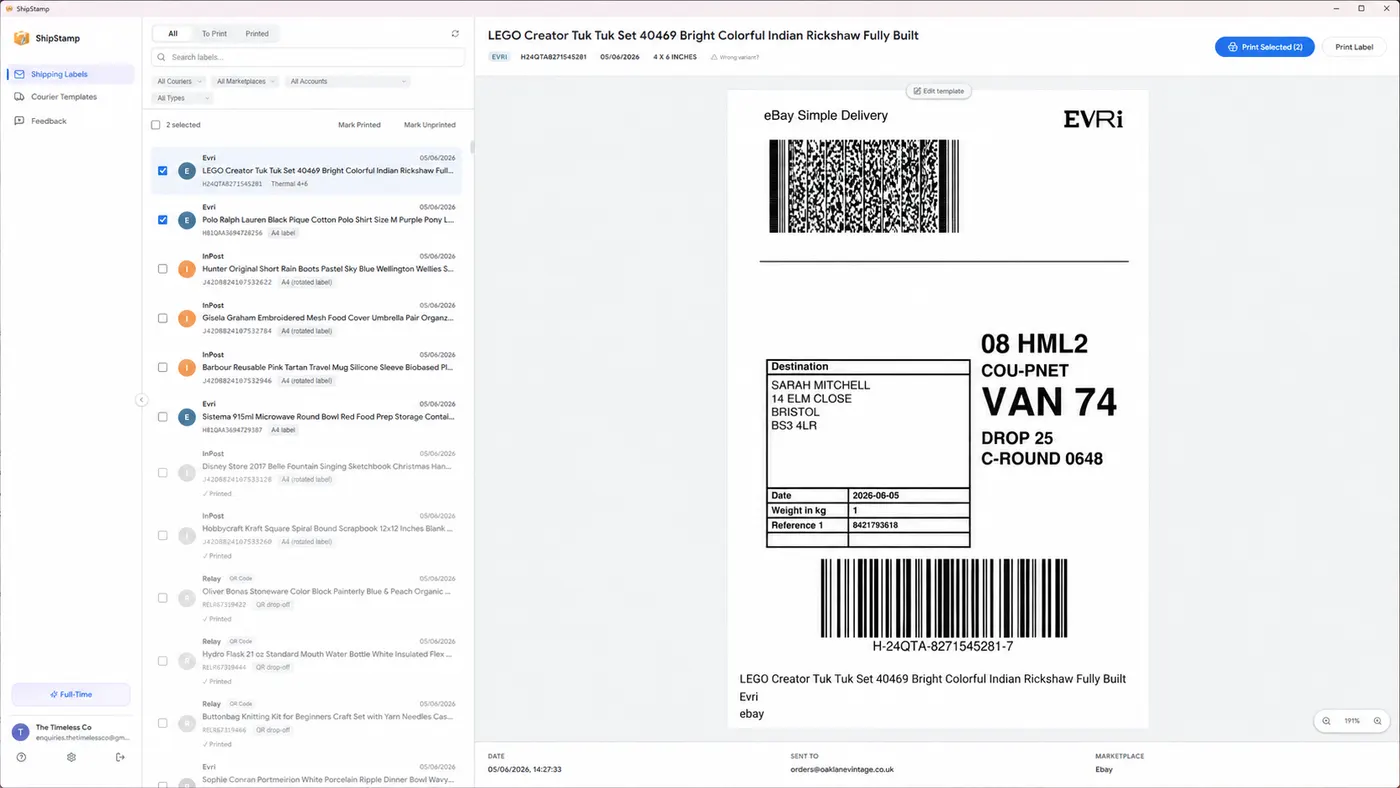
They open one application. Every label from every platform, from every inbox, is already there, pulled in automatically since the last session. The labels are grouped by courier, because that’s the order in which parcels need to be sorted at drop-off. Royal Mail in one group. Evri in another. InPost lockers in a third.
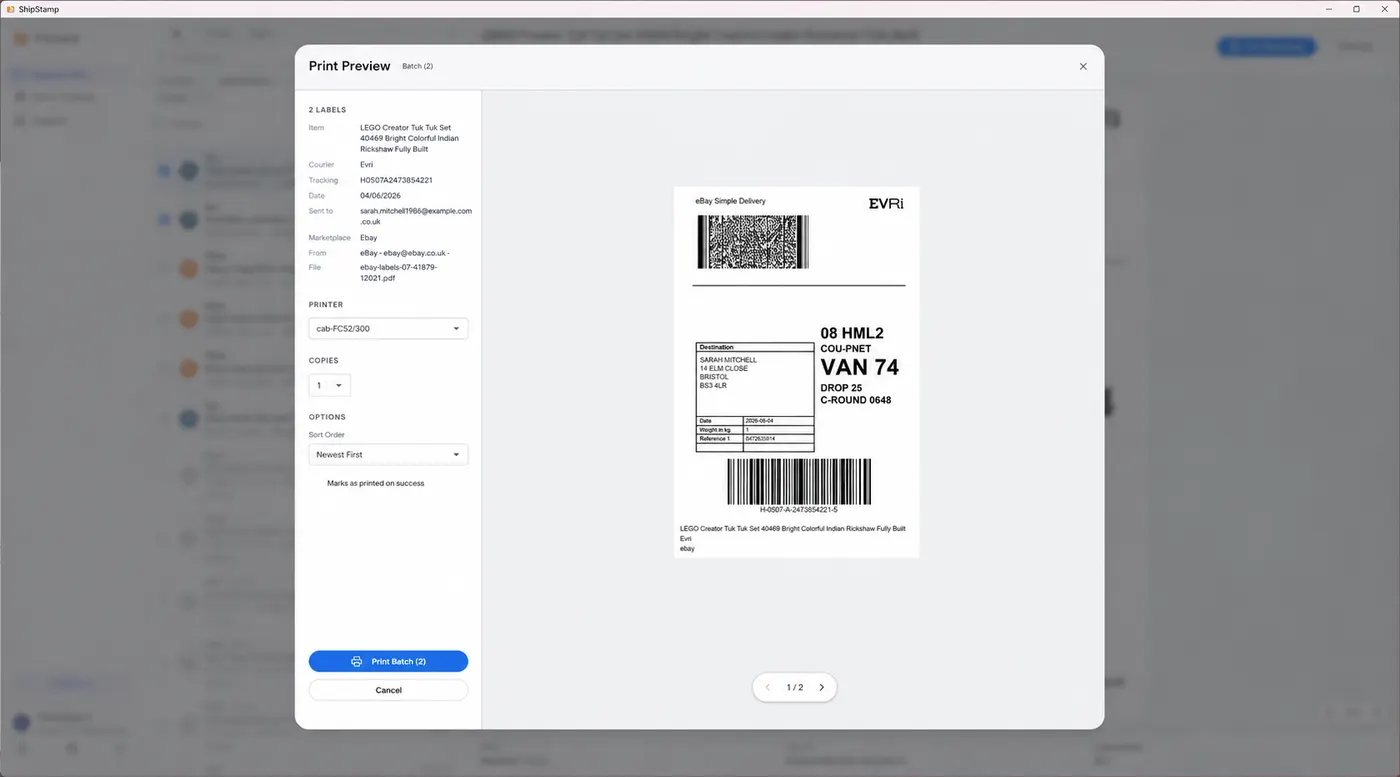
The seller selects all. One click. Every label prints in sequence, correctly sized, in courier order, to whichever printer is set as default. The printer ejects them in the order the parcels need to be packed.
For twenty labels, that process takes under two minutes. The remaining fifty-eight minutes of the hour they used to spend are now available for actually packing and posting.
The courier grouping problem nobody mentions
There’s a detail about batch printing that most articles skip over, and it matters in practice. When you’re printing twenty labels across three or four couriers, the order you print them in affects how long packing takes.
If your labels come out in random order, you end up with an InPost label, then a Royal Mail label, then another InPost label, then two Evri labels, then a Royal Mail label. Each parcel needs to be matched to its label. At twenty labels, this matching step adds several minutes to the session. At fifty labels, it’s a genuine problem that leads to mismatched labels and incorrect deliveries.
Printing by courier group eliminates this entirely. All Royal Mail labels together. All Evri labels together. All InPost labels together. You pack in batches by carrier, the labels are already in order, and the matching is trivial. Sounds like a minor detail. For anyone doing regular volume, it makes a meaningful difference to the end-to-end packing time.
The filtering problem for busy sellers
Active sellers accumulate labels quickly. A seller who’s been on Vinted for two years and processes twenty-five sales a month has six hundred labels in their history. When a buyer contacts them about a specific order, or when they need to check the tracking number for a parcel that may have gone missing, the ability to find a specific label quickly matters.
In the standard email-based workflow, this means searching Gmail for the buyer’s name or the item description and hoping the email subject line is specific enough to surface the right one. It usually takes a few minutes. If the email’s been archived or the search terms are ambiguous, it can take longer.
A proper label management tool keeps all labels in a searchable list. Find any label by item name, tracking number, marketplace or courier in under five seconds. Not a headline feature, but the sort of thing that saves ten minutes at a time, regularly, across hundreds of sessions.
Common questions
How long does it take to print Vinted labels manually?
For most sellers, around 2–3 minutes per label — finding the email, downloading the PDF, configuring the print dialog, and printing. Twenty labels takes around 60 minutes minimum.
Can you print multiple Vinted labels at once?
Not natively through Vinted’s website. Third-party software like ShipStamp connects to your Gmail or Outlook inbox and lets you queue and print all pending Vinted and eBay labels in one click.
Why does printing Vinted and eBay labels take so long?
Each Vinted label requires a separate email, PDF download, and print dialog. eBay labels require logging into the platform to generate each one. Neither platform provides a unified print queue for sellers managing multiple couriers or accounts.
The fix
ShipStamp turns an hour of label admin into under five minutes
ShipStamp connects to your Gmail or Outlook inbox and pulls every Vinted and eBay shipping label automatically, the moment it arrives. Every label from every platform is in one place, grouped by courier, ready to select and print in a single click.
No downloading. No PDF merging. No print dialog per label. No manually matching labels to parcels. Select all, print, done. For twenty labels, the whole process takes under two minutes. For fifty, it still takes under five.
Works with any printer Windows can see: thermal label printer, standard inkjet, laser, or Microsoft Print to PDF. Free to try, 50 labels included, no card required.
Join the waitlist