 ShipStamp
How to Print an InPost Shipping Label at Home (the Right Size, Every Time)
Of all the couriers, InPost is the one whose label fights you hardest. You open the PDF, hit print, and out comes a label turned on its side, half of it off the edge of the roll, the barcode clipped. It’s not your printer and it’s not you — it’s the way InPost builds the file. Once you see what’s in it, getting a clean 6×4 label is straightforward.
What an InPost label actually is
The InPost shipping label is the standard size — 6×4 inches (100×150mm), the same as Royal Mail and Evri. The problem is thewrapper. InPost doesn’t send you a 6×4 file. It sends a full A4 PDF with the label rotated ninety degrees and tucked at the bottom or side, surrounded by sender instructions, QR codes and cut lines. The label is maybe a quarter of the page.
Why it prints sideways or tiny
Your printer doesn’t know which part of that A4 page is the label. Ask it to print and you get one of two failures:
- Sideways. Because InPost rotates the label ninety degrees, it prints across the short edge of your 6×4 roll — so the long side of the label runs off the side of the sticker.
- Tiny. Switch on ‘fit to page’ to make it stop overflowing, and the printer shrinks the entire A4 sheet down to label size. The label was a quarter of that page, so now it’s a quarter of a label — a stamp in the middle of the sticker, barcode far too small to scan.
Both are the same root cause: an A4 page pretending to be a label, laid out sideways. We broke down the full mechanics of wrong-size labels here.
The fix: crop, rotate, print at 100%
Every awkward courier label comes right with the same three steps, and InPost is the textbook case:
- Crop the PDF down to just the 6×4 label, throwing away the surrounding page.
- Rotate it ninety degrees so it’s the right way up for your roll.
- Print at 100% (not ‘fit to page’) to your 6×4 label media.
Done that way the label fills the sticker, the barcode is whole, and it scans first time at the locker or ParcelShop. The catch is that doing this by hand in a PDF editor, for every single InPost order, is tedious enough that most sellers give up and tape on a wonky one.
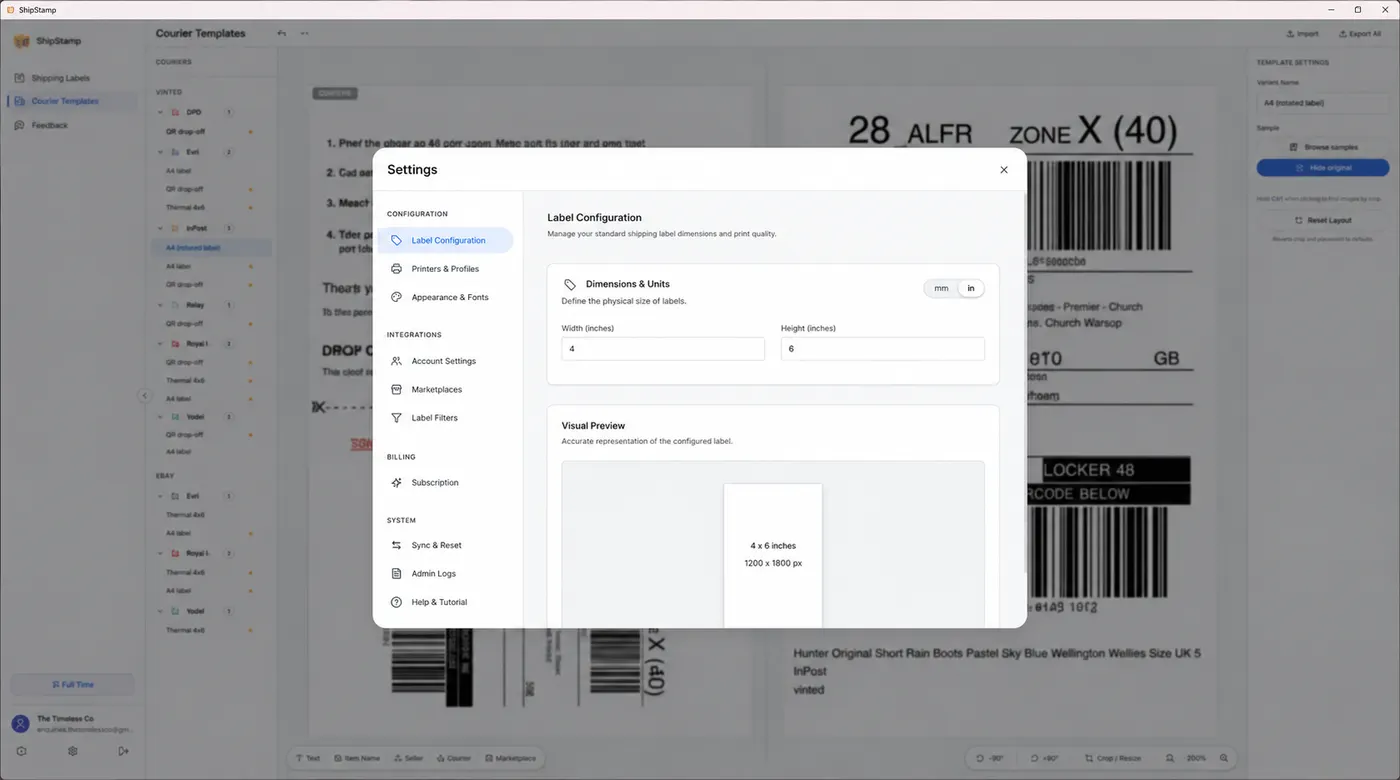
How ShipStamp does it automatically
ShipStamp pulls your InPost labels straight from your Gmail or Outlook inbox — no downloading the PDF, no forwarding. Its built-in editor lets you crop to the label and rotate it upright with a click, and a true-size preview shows you exactly what will print before anything hits paper.
The part that saves the most time: it remembers the fix for InPost. Crop and rotate one InPost label, and every InPost label after it is cropped and rotated the same way automatically. You set it up once and never touch a sideways InPost PDF again.
Common questions
Why does my InPost label print sideways?
InPost lays the label out rotated ninety degrees on an A4 page. Printed as-is on a 6×4 roll it comes out sideways with half the label off the edge. Rotating it ninety degrees before printing fixes it.
What size is an InPost shipping label?
The label itself is 6×4 inches (100×150mm), the same as every other UK courier. It just arrives inside a full A4 PDF, so you crop down to the label before printing.
How do I print an InPost label on a thermal printer?
Crop to the 6×4 label, rotate it upright, and print at 100% to your label media. ShipStamp does this in a built-in editor and remembers it for InPost so it’s automatic from then on.
The fix
Clean InPost labels, automatically, every time
ShipStamp finds your InPost, Evri, Royal Mail and Yodel labels in your inbox, crops and rotates each courier’s layout to a perfect 6×4 label, and remembers the fix per courier so you never redo it. True-size preview before you print, on any printer Windows can see.
Free to try, 50 labels included, no card required.
Get ShipStamp free on Windows