 ShipStamp
How to Print Evri, InPost and Yodel Labels at Home
You sell on Vinted. One week the courier is Evri, the next it’s InPost, the week after that it’s Yodel. Three couriers, three completely different ways of handing you the label. One sends a PDF, one sends a QR code, one buries it on a full A4 page. Here’s how to print each of them at home, at the right size, without fighting your printer settings every single time.
The real problem isn’t the printer. It’s that no two couriers agree on a format
Most guides about printing courier labels assume you have one courier. You don’t. A typical UK Vinted seller ships with whichever option the buyer picked at checkout, and that rotates between Evri, InPost, Yodel and Royal Mail with no warning. Each one delivers the label in its own way.
Evri tends to send a PDF where the actual label sits in the top corner of an otherwise blank A4 page. InPost leans on QR codes, but there’s a printable label hiding in the email too. Yodel labels — often routed through InPost lockers and marked “Yodel by InPost” — frequently come out rotated, sized for a sheet fed sideways. Set your printer up to handle one of them and the next one prints wrong.
So the question “how do I print my courier label at home” doesn’t have one answer. It has three. Here they are.
Printing Evri labels at home
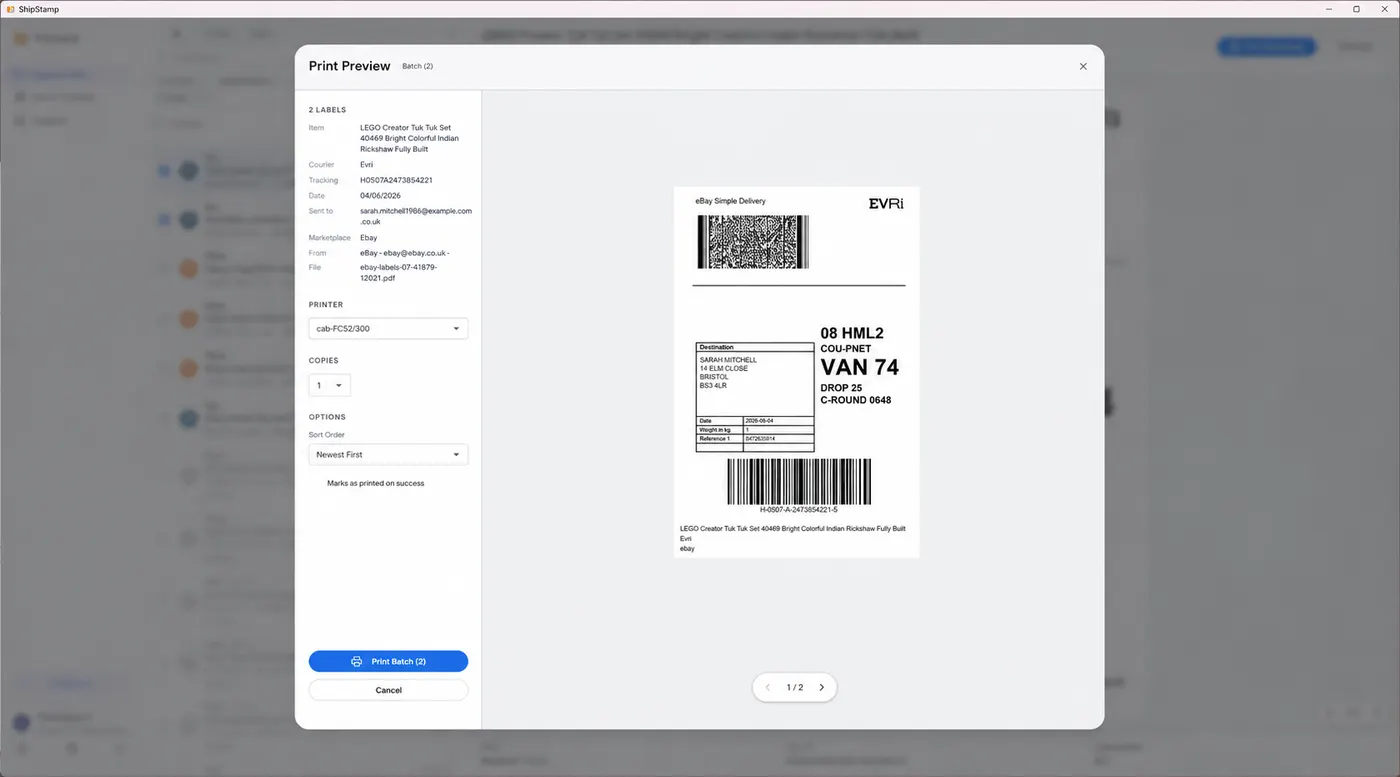
Evri (formerly Hermes) sends the label as a PDF, either attached to the confirmation email or available from your Evri account. The label itself is small — roughly 6x4 inches — but it’s placed on a full A4 page with a large margin of white space around it.
That white space is what trips people up. If you open the PDF and hit print on a thermal label printer with “fit to page” switched on, the printer dutifully shrinks the entire A4 sheet down to fit a 100x150mm label. Your actual barcode ends up the size of a postage stamp in the corner. Useless.
The fix is to print only the label area at 100 percent scale. On an inkjet, print at A4, then fold or cut so only the label shows. On a thermal printer, crop the PDF down to the label region first, then print that at full size to a 100x150mm media setting. Once you’ve worked out the crop for Evri once, it’s the same every time — Evri is at least consistent with itself.
Printing InPost labels at home
InPost is built around the QR code. The idea is that you never print anything: you take your parcel to a locker, scan the QR code on the screen, and the locker prints the label for you. For someone without a printer, that’s genuinely useful.
But it has downsides. You’re stuck labelling your parcel at the locker, in public, sometimes in the rain, sometimes behind someone posting twelve parcels. And the locker’s thermal printout isn’t always reliable. Plenty of sellers prefer to print the InPost label at home, stick it on in the warm, and just drop the finished parcel in.
You can. Alongside the QR code, InPost provides the actual shipping label as a PDF. Print it the same way you’d print any label: full size, label-only, no shrinking. Then the locker visit is a ten-second drop-off rather than a queue.
Printing Yodel labels at home
Yodel is the awkward one. A lot of Yodel volume now runs through InPost lockers, so the label says “Yodel by InPost” and behaves like neither a clean Yodel label nor a clean InPost one. The common complaint: it prints sideways.
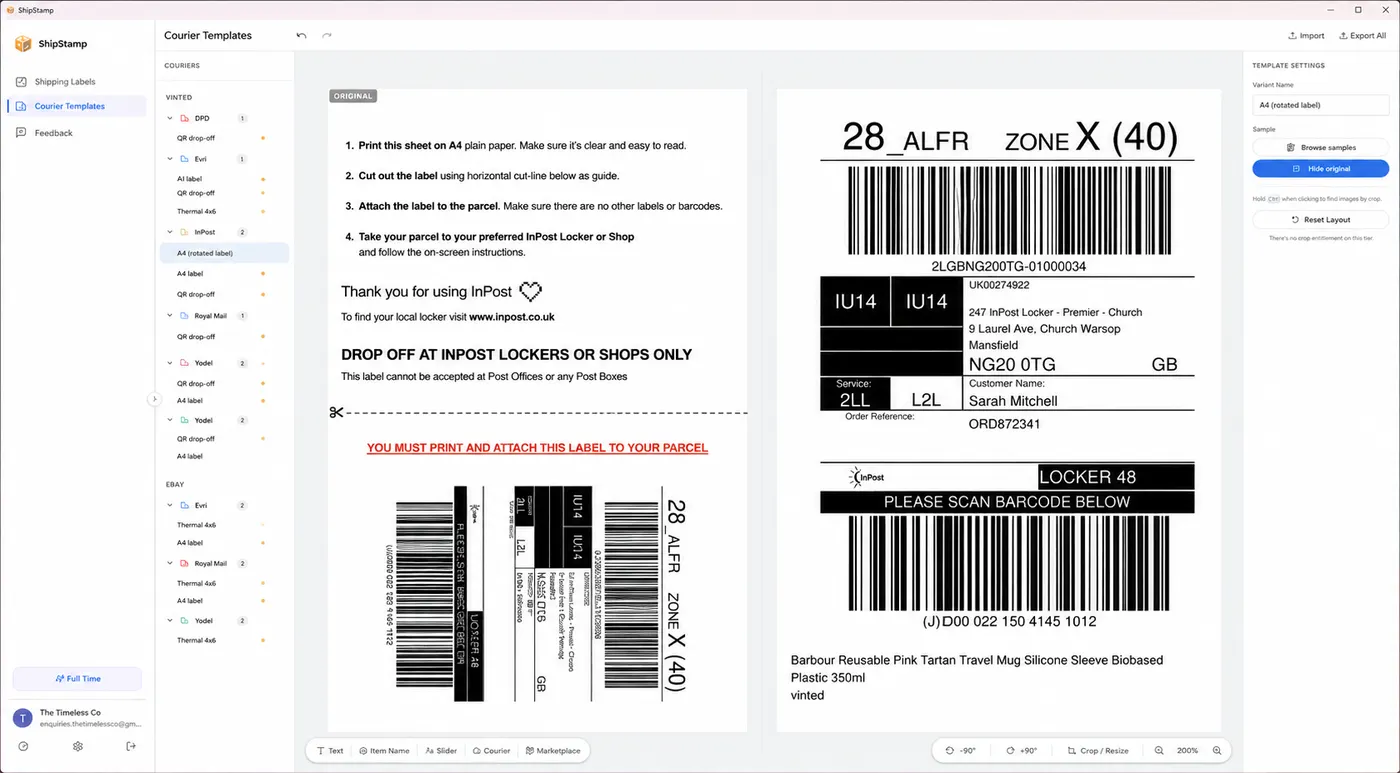
That’s because the label is laid out rotated 90 degrees on the page, sized as though the sheet will be fed landscape. Print it as-is on a portrait label roll and the barcode runs off the edge or comes out on its side. The fix is to rotate the label 90 degrees before printing, then print the rotated version at 100 percent. Get that rotation set once and Yodel stops being a problem.
None of these three fixes is hard on its own. The trouble is doing all three, by hand, every packing session, while keeping track of which courier needs which treatment. That’s the bit that wears you down.
The part that actually saves time: handle the format once, not every time
Here’s the insight most printing guides skip. The crop for Evri, the label-only print for InPost, the rotation for Yodel — these are fixed properties of each courier’s layout. They don’t change from one parcel to the next. So in principle you should only ever have to solve each one once.
In practice, the standard workflow makes you re-solve them constantly. You find the email, open the PDF, squint at it, adjust the print dialog, print, check it came out right, and repeat for the next sale with a different courier and a different layout. The knowledge lives in your head, not in the tool.
This is the specific problem ShipStamp was built to remove.
Common questions
Can I print an InPost label at home instead of using the QR code?
Yes. InPost gives you a QR code so the locker can print the label for you, but you can also print the label yourself at home and stick it on before you drop off. Printing at home lets you use a thermal printer and skip the locker queue. The printable label is in the email or your InPost account alongside the QR code.
Why does my Evri label print at the wrong size?
Evri labels usually arrive as a small label on a full A4 page. If you tell a thermal printer to fit the whole A4 sheet onto a 100x150mm label, it shrinks everything and the label comes out tiny. Crop to just the label area and print that at 100 percent, or use software that does the crop for you.
Do Evri, InPost and Yodel all print the same way?
No, and that is the catch. Each courier formats its label differently — page size, position, sometimes rotation. A setup that prints a Royal Mail label perfectly can produce a sideways Yodel label. The label region has to be handled per courier, which is why one fixed print setting rarely works for all of them.
The fix
ShipStamp learns each courier’s label once
ShipStamp connects to your Gmail or Outlook inbox, finds every shipping label from Evri, InPost, Yodel and Royal Mail automatically, and groups them by courier. The crop and orientation for each courier’s layout are saved against that courier, so the awkward Evri margin and the sideways Yodel label only need fixing once.
After that, printing is one click to whatever printer is on your desk — thermal, inkjet or laser. No re-cropping, no rotating, no fighting the print dialog for every sale. And when you ship a lot at once, you can lay several labels onto a single A4 sheet (four or six to a page) instead of wasting a sheet per label.
Free to try. 50 labels included, no card required.
Join the waitlist